
It's tournament day. Players are hovering around a whiteboard covered in crossed-out names, squinting at scrawled court numbers. Someone has just asked "Am I on next?" for the fourth time in an hour. Your volunteer is desperately uncapping a dried-out marker to rewrite the entire draw — again — because two matches ran late and now nothing lines up.
You've seen this. Maybe you've lived this.
The truth is, paper schedules and handwritten whiteboards were never really good enough. We just didn't have a better option. Now we do.
This guide breaks down exactly why traditional noticeboards fall apart under pressure, what digital schedule displays do differently, and how you can get a professional, live-updating match display running at your next event in under 15 minutes — no technical experience required.
Why Traditional Noticeboards Always Let You Down
Let's stop pretending the old methods work. Here's what actually happens:
The moment you print it, it's wrong
Printed schedules are a snapshot in time — and time moves on fast. The first match overruns by ten minutes, and suddenly your entire schedule is fiction. A player pulls out mid-morning, and now you're doing origami with printed sheets or scribbling corrections in the margins.
By lunchtime? That clean, laminated schedule from 9am is an annotated mess of arrows, asterisks, and crossed-out names that only you can interpret — if you're lucky.
Whiteboards become unreadable under pressure
A whiteboard sounds like the flexible solution. In practice? It's a disaster waiting to happen.
Different handwriting styles. Markers that run dry. Accidental erasures. Someone squeezes in a last-minute addition in the corner and now half the players can't tell if they're on Court 3 or Court 8. The board that started the day as a clear schedule becomes a cryptic puzzle that generates more questions than it answers.
The "Am I on next?" spiral never ends
Here's the brutal feedback loop: the less clear your display is, the more players interrupt your volunteers to ask for updates. The more your volunteers are answering questions, the less time they have to update the board. The less updated the board is, the more players ask questions.
Your volunteers didn't volunteer to spend all day being a human FAQ. They want to run a great event.
You're bleeding volunteer hours
Here's the maths no one does: if a volunteer spends 15 minutes every hour updating a whiteboard during an 8-hour event, that's 2 full hours lost to admin. Across multiple volunteers and a full season of events, you're looking at hundreds of wasted hours every year.
Hours that could be spent welcoming new players, managing results, or just actually enjoying the event.
What Digital Schedule Displays Do Differently
Switching to a digital display isn't just a quality-of-life improvement — it changes how your entire event feels.
Every screen updates the moment you make a change
Change a court assignment on your phone. Within seconds, it's updated on the TV in the main hall, the tablet at the registration desk, and every player's own device. No printing. No rewriting. No announcement over the PA.
Players learn quickly that the display is always right. They stop asking questions. That trust alone is worth the switch.
Crystal clear from across the room
Digital displays use consistent typography, high-contrast layouts, and large text designed to be readable from 10 metres away. No squinting. No guessing whether that's a "1" or a "7".
And crucially — it looks exactly the same at 9am as it does at 4pm. No smudging. No fading. No crossed-out chaos.
Players spread out instead of crowding the desk
When players can check the schedule from their phone, from a screen in the café, or from a TV at the far end of the hall, they stop bottlenecking around a single noticeboard. Your venue breathes. Your registration desk stops being a queue management exercise.
Works on whatever screens you already have
Smart TV? Laptop? Old monitor plugged into a laptop? iPad on a stand? If it has a web browser, it can show your schedule. No special hardware. No software installations. No IT department needed.
Makes your club look like it has its act together
First impressions matter. A clean, live-updating digital display signals that you're running a professional, well-organised event. That impression sticks — with players, with visitors, and with potential sponsors.
Step by Step: Setting Up Your Schedule Display with NowNext.live
The whole process takes about 10–15 minutes the first time. After that, you'll be setting up new events in under 5. Here's exactly how it works:
Step 1: Create Your Event
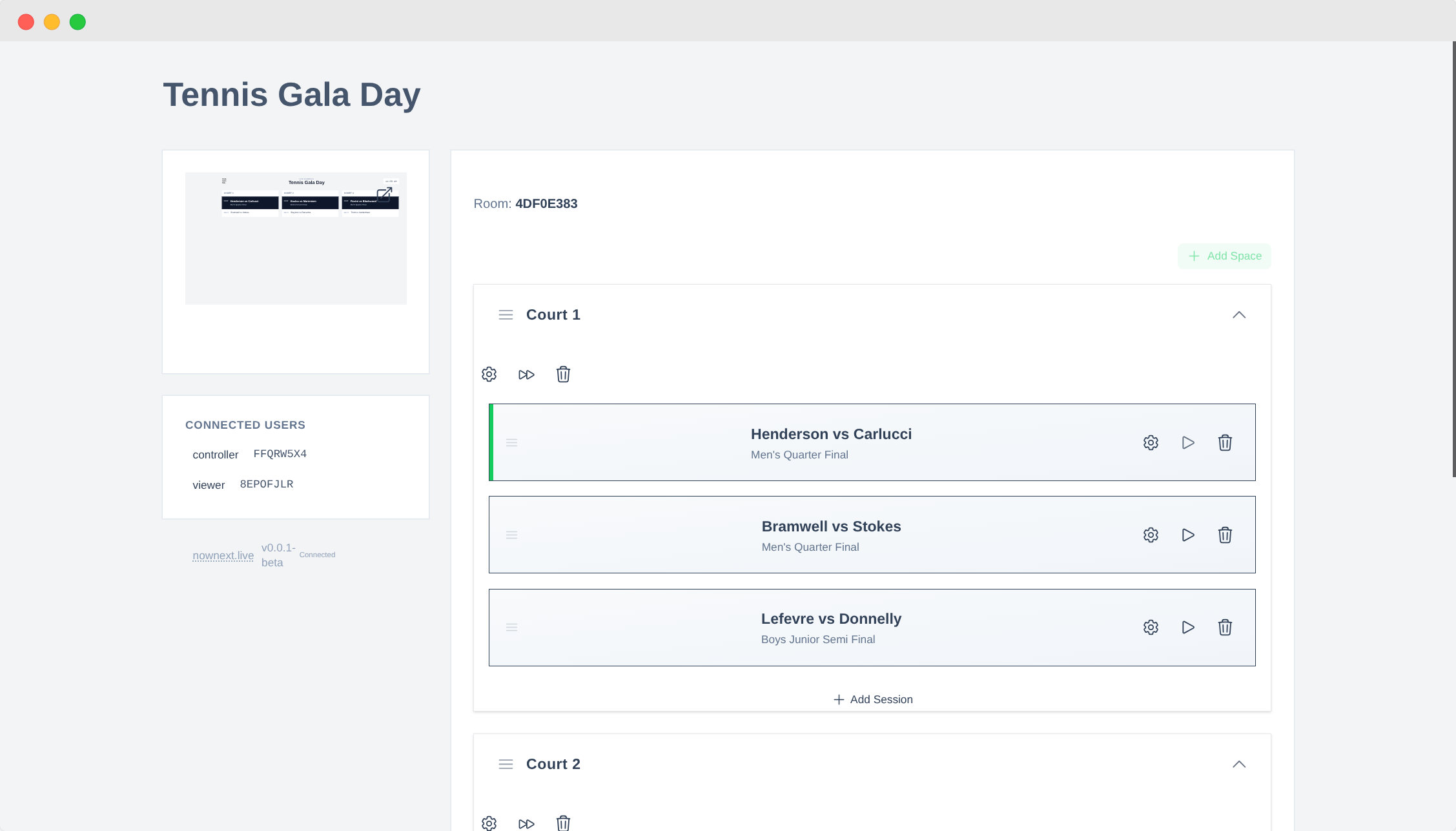
Head to nownext.live and log in (or create a free account). Hit Create Event and give it a clear name — something like "Saturday Club Championships" or "Junior Open March 2025".
The system instantly creates a unique URL for your event. This is what you'll use to control the schedule and what you'll put on your display screens. Keep it handy.
Step 2: Add Your Courts or Playing Areas
NowNext.live calls your playing areas Spaces — whether they're courts, rinks, pitches, lanes, or rooms.
Open the Spaces section and add each one by name: "Court 1", "Court 2", "Main Rink" — whatever matches how they're labelled in your venue. Drag to reorder them so they appear on screen in the right sequence.
Pro tip: Name your spaces exactly as they appear on your venue's signage. If your courts are marked A, B, C — use A, B, C. The fewer translation steps in a player's head, the better.
You can add as many or as few as you need. The display adapts automatically.
Step 3: Add Your Sessions
Now for the actual schedule. Open the Sessions section and add each round, time block, or match. Name them whatever makes sense: "Round 1", "Semi-Finals", "10:00 AM Block".
Each session can hold:
- Player names or team names
- Match numbers or descriptions
- Start times
- Court/space assignment
- Any extra notes
Don't stress about getting everything perfect upfront. You can add, edit, and reorder sessions at any point — even mid-event. That's the whole point of going digital.
Step 4: Open the Display View
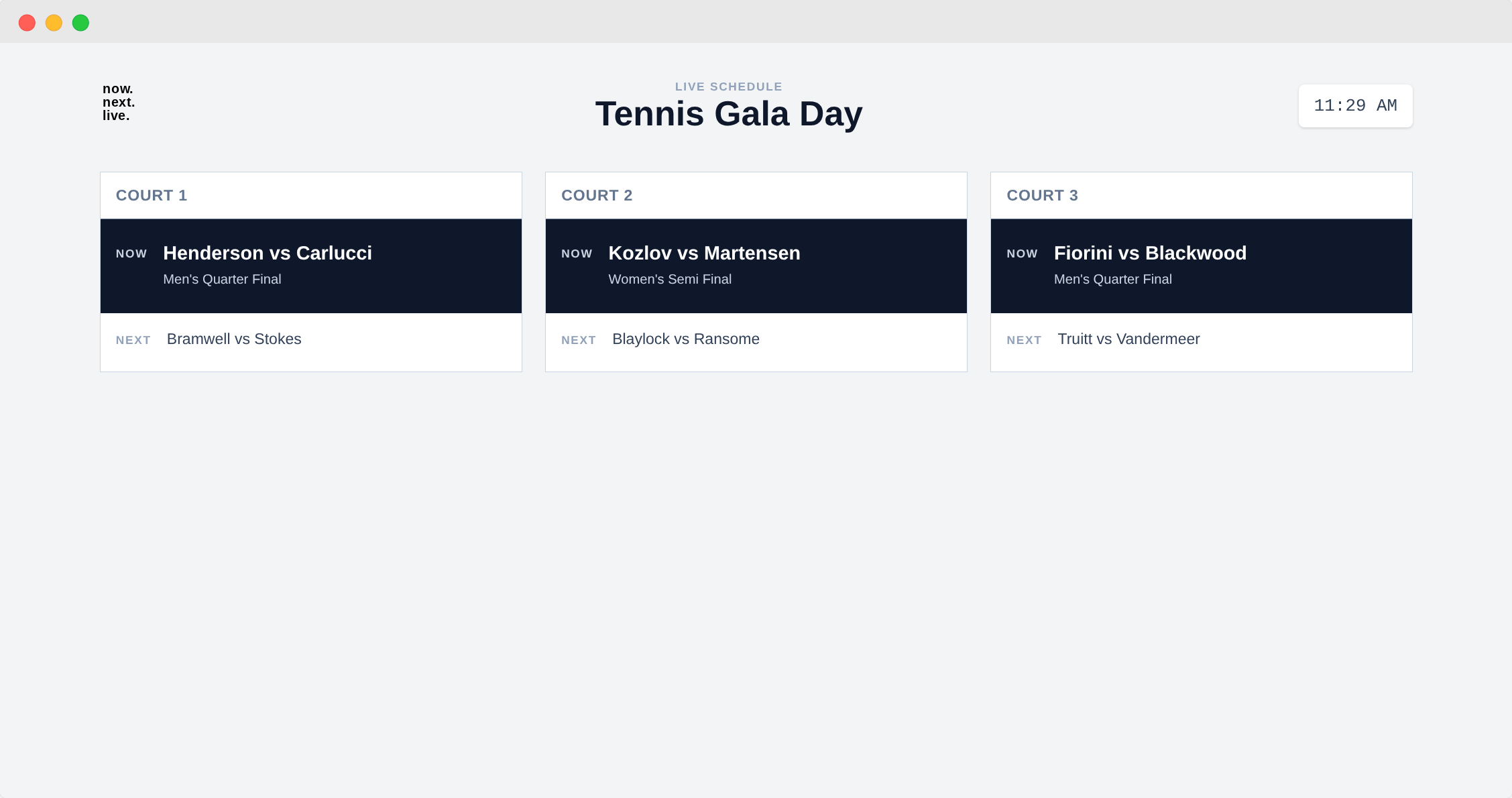
Select Open Display from your event controller. You'll see your schedule in its full, screen-optimised glory — large text, clean layout, built for venue visibility.
Try making a change in the controller and watch the display update in real time. That's the "wow" moment most people have when they first use it.
The display is read-only. Players can view it on their phones, but they can't accidentally edit anything.
Step 5: Put It on Your Screens
Now for the satisfying part. Open the display link on:
- Smart TVs — open the browser app and paste in the URL
- Laptops or desktops — great for registration desks or office use
- Tablets — portable, flexible, easy to reposition
- Any screen with a browser — literally anything works
A few tips to make it shine:
- Use full-screen mode (usually F11 on a keyboard) to hide browser chrome
- Adjust brightness for your venue lighting
- Set the display URL as the browser's homepage so it auto-loads
- Disable sleep mode on any screen that needs to run all day
And the best part: open it on as many screens as you want. One controller, unlimited displays, all synced instantly.
Step 6: Update on the Fly
This is where digital schedules go from useful to genuinely transformative.
As matches finish and things inevitably shift, you make changes from your phone or laptop:
- Mark a match complete — it moves off the "now" display
- Reassign a court — update one field, every screen reflects it
- Push back a session — adjust the time, and players see it immediately
- Add or remove matches — handle withdrawals or late entries without any fuss
Real scenario: A match overruns by 20 minutes. Under the old system, you'd need to rewrite the entire schedule. With NowNext.live, you push the next session back by 20 minutes. Every display updates. Players check their phones. Nobody needs to ask anything. The event carries on smoothly.
What Clubs Are Saying
The clubs that have made the switch report real, measurable improvements:
- 70–80% fewer "what's happening next?" questions, according to volunteers
- Events that run more smoothly with less time lost to schedule management
- Happier players who feel informed and in control of their day
- A more professional impression on visitors, sponsors, and potential new members
One club coordinator put it simply: "We used to have two people just managing the whiteboard all day. Now one person handles the entire schedule from a tablet while also greeting players and managing everything else. It's been transformative."
Common Questions
Do I need a smart TV?
No. Any screen with a web browser works — regular computers, laptops, tablets, smart TVs, or even old monitors connected to a Raspberry Pi. If it can open a web page, it can show your schedule.
Can multiple screens show the same schedule?
Yes, and this is one of the best things about the platform. You can have the same live schedule on a TV in the main hall, a tablet at the desk, a laptop in the office, and every player's phone — all showing identical, real-time information. There's no limit on connected screens.
Does it work for sports other than racket sports?
Absolutely. NowNext.live is sport-agnostic. It works brilliantly for:
- Bowls, football, athletics, swimming — any sport with multiple concurrent matches
- Esports tournaments — great for showing stream matchups and bracket progression
- Conferences and seminars — show which talks are on in which rooms, right now
- Any event where you need to communicate "what's happening where, and when"
What does it cost?
There's a free tier that works well for small clubs and occasional events. Paid plans unlock unlimited events, custom branding, and advanced scheduling features. See current pricing at nownext.live/pricing.
What if our internet goes down mid-event?
The display is built to be resilient. Once loaded, it continues showing the last known schedule even if the connection drops. When connectivity returns, it automatically syncs any changes you've made.
For venues with consistently poor internet, a mobile hotspot or a dedicated connection for display screens is a simple fix.
Can players check the schedule on their phones?
Yes — and many clubs love this feature. Share the display URL with players before or on the day and they can check what's happening next from wherever they are. It's read-only, so there's no risk of anyone accidentally editing the schedule.
How long does setup actually take?
For a typical club tournament:
- Creating the event: ~2 minutes
- Adding courts/spaces: ~1–2 minutes
- Adding sessions: ~5–10 minutes depending on complexity
- Setting up display screens: ~2–3 minutes
Total: 10–15 minutes for your first event. Once you know the system, you can spin up a new event in under 5.
Can I prepare everything in advance?
Yes. Create your event days or even weeks ahead. Set up all your spaces and sessions, get everything exactly right, then on event day just open the display and go. Many clubs build template events for recurring tournaments, making each new setup even faster.
It's Time to Retire the Whiteboard
Whiteboards and printed schedules served us well for decades. But they were always a workaround — a best-available solution to a problem that now has a genuinely better answer.
Digital displays are easier to manage, more accurate, more professional, and — most importantly — they give your volunteers their time back.
You don't need special equipment. You don't need a technical background. If you can open a web browser, you can run a live digital schedule display.
Ready to try it? Head to NowNext.live and create your first event for free. You'll have a live display running in under 15 minutes — and you'll wonder how you ever managed without it.
Your volunteers will thank you. Your players will thank you. And you'll get to spend event day actually at the event, instead of chained to a whiteboard.
Questions about setting up your first display? Drop us a line at hello@nownext.live — we love helping clubs get set up.